There are many great things about Exness, from its sleek design and easy interface to the lack of trading fees for actions like deposits and withdrawals. Since I began using the broker three months ago, I’ve thoroughly enjoyed my experience, and I believe it is one of the best trading platforms out there.
One thing that has made my experience much better, though, is the Exness mobile trading app. It has been a game-changer personally because it allows me to keep up with my trades or make new ones on the go, all from the comfort of my mobile device.
Why Use the Trading App Over the Website?
I can think of a million reasons why you should use the Exness trading app over the website. One is if you want flexibility. With the trading app, you can stay updated on your trades and even make new ones while on the move. It allows you to do all this from your mobile device, meaning you no longer have to be with your personal computer at all times.
Furthermore, the experience on the trading app is more seamless than that of the website, thanks to additional features, such as push notifications and fingerprint login.
The app is also compatible with all mobile devices, such as smartphones or tablets. Lastly, it is easy to use for traders of all skill levels, thanks to an intuitive design and sleek user interface.
How to Get the Exness Trading App on Android
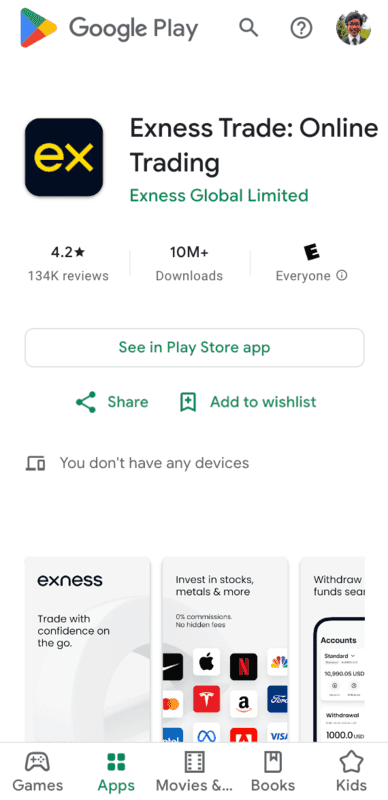
To get the Exness trading app on your Android device, follow these simple steps.
- Launch the Google Play Store app on your mobile device.
- Once inside, search for Exness Trade using the search bar.
- Click on the Exness app from the results and press the download bar to download it to your mobile device.
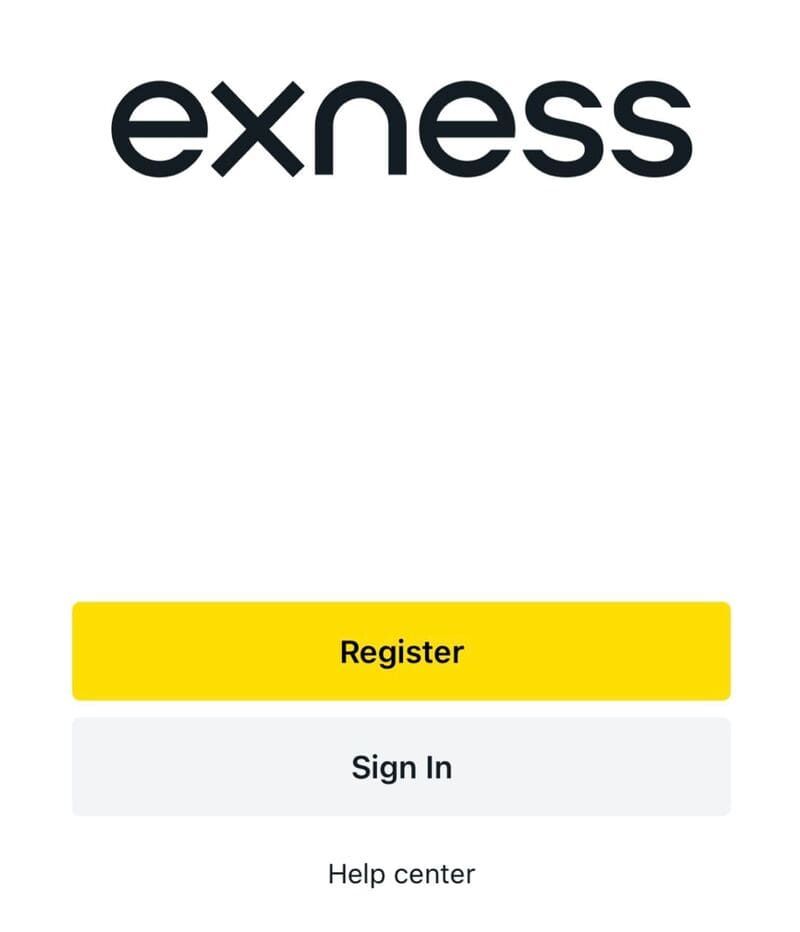
- After downloading the app, launch it and log in to your Exness account to start using it. If you don’t have an Exness account, click the Register button to create one.
Alternatively, you can download the Exness trading app for Andriod directly from your web browser. To do so, follow these easy steps.
- Open your mobile web browser and search for “Exness trading app.”
- Scan the results and click on the one from Exness’ official website.
- Once the page loads, you will see a “Download on the Google Play Store” button. Click on it and follow the on-screen instructions to download the app to your mobile device.
How to Get the Exness Trading App on iOS
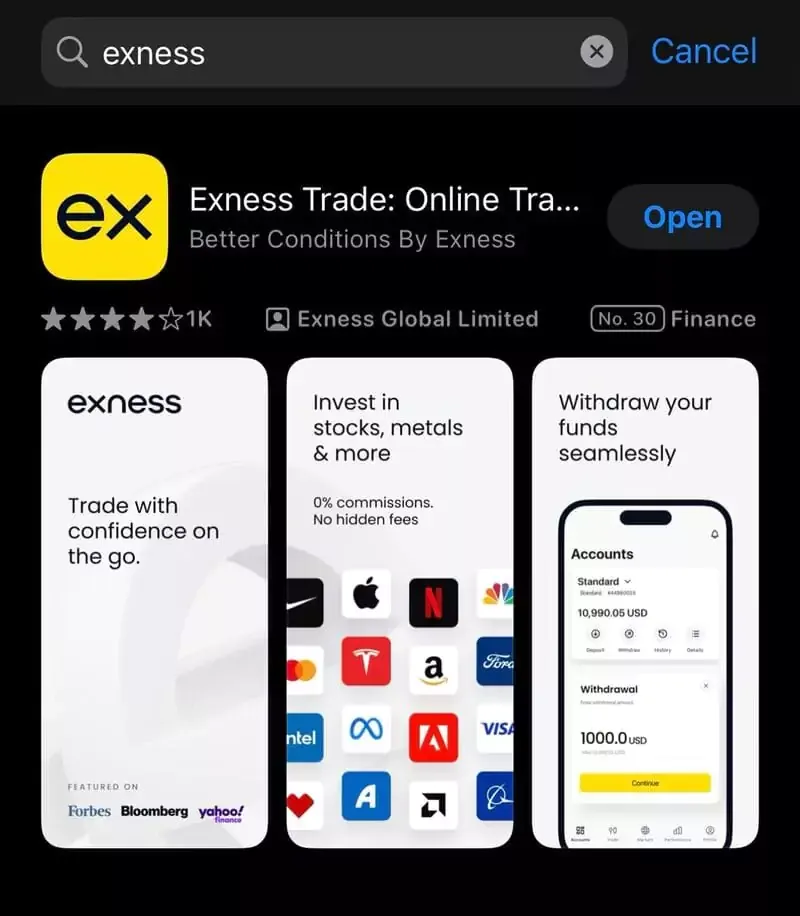
To get the Exness trading app on your iOS device, follow these simple steps.
- Launch the app store on your mobile device.
- Once inside, search for Exness Trade using the search bar.
- Click on the Exness app from the results and press the download bar to download it to your mobile device.
- After downloading the app, launch it and log in to your Exness account to start using it. If you don’t have an Exness account, click the Register button to create one.
Alternatively, you can download the Exness trading app for iOS directly from your web browser. To do so, follow these easy steps.
- Open your mobile web browser and search for “Exness trading app.”
- Scan through the results and click on the one from Exness’ official website.
- Once the page loads, you will see a “Download on the App Store” button. Click on it and follow the on-screen instructions to download the app to your mobile device.
Steps to Sign Up on Mobile
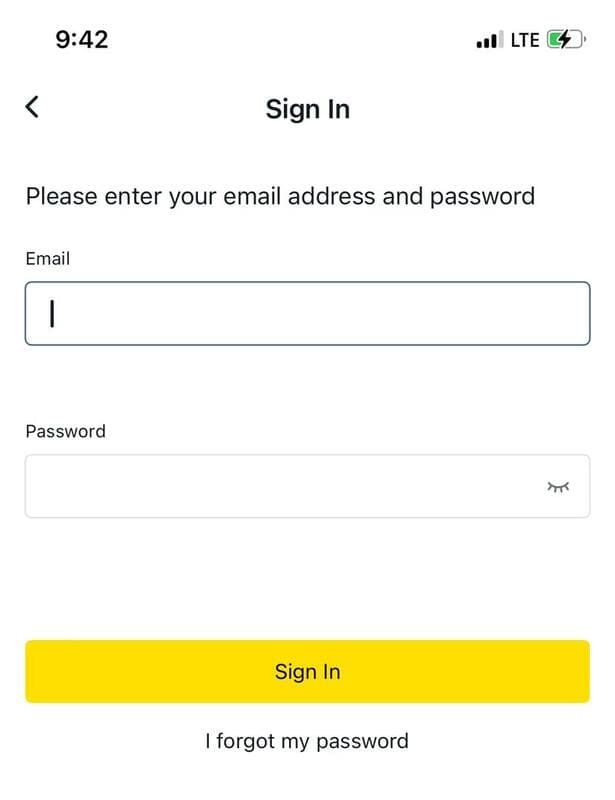
If you don’t have an Exness account, you can create one with your mobile device by following these easy steps.
- Launch the Exness trading app on your mobile device. On the homepage, click on the sign-in button.
- Fill out the sign-in form with your account details and click the sign-in button once you’ve done so. Make sure you put the right details in the form, or you will encounter errors.
- If your account details are correct, you will advance to the next stage: setting a six-digit code. Choose a unique six-digit code you will remember because that’s what you will use to log in to your account on the mobile app.
- Once you’ve set a code, your account will be created automatically, and you will be redirected to your Exness account dashboard.
How to Deposit & Withdraw with Exness on Mobile
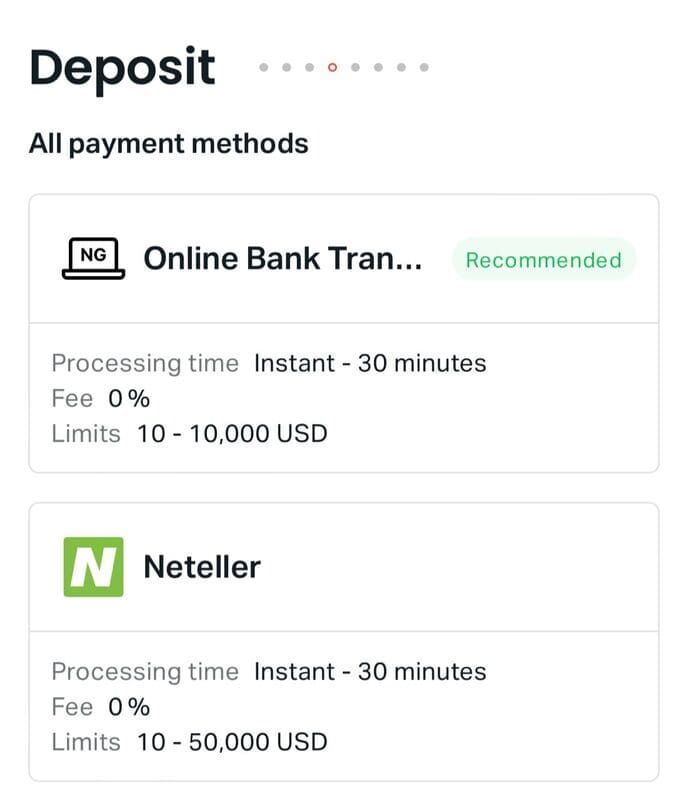
Now that we’ve gone through the specific steps to sign up for the Exness trading app let’s discuss how to deposit and withdraw. To deposit money into your account on the Exness trading app, follow these easy instructions.
- Launch the Exness trading app on your mobile device.
- Once inside the app, find the Accounts tab using the navigation buttons at the bottom of your screen. Once the Accounts page opens, click on the Deposit button.
- Inside the Deposit page, select the payment method of your choice. If a payment method is shown to be recommended, it means it has a high success rate in your registered region. Ideally, that’s the one you should choose.
- Enter the amount you want to deposit in the form that appears after you’ve chosen a payment method and tap the continue button to proceed.
- If the deposit summary shown is correct, tap the confirm button. Then, follow the on-screen instructions to complete the transaction.
Likewise, you can initiate a withdrawal using the Exness trading app. Follow these easy instructions to do so.
- Launch the Exness trading app on your mobile device.
- Once inside the app, use the navigation buttons at the bottom of your screen to find the Accounts page. Once the Accounts page opens, click on the Withdrawal button.
- Inside the Withdrawal page, select the payment method of your choice. If a payment is recommended, it means it has a high success rate in your registered region. Ideally, you should choose that method.
- Enter the amount you want to withdraw in the form that appears after you’ve chosen a payment method, and tap the continue button to proceed.
- If the withdrawal summary shown is correct, tap the confirm button. Then, follow the on-screen instructions to complete the transaction.
You may need to verify your withdrawal payment account before using it; otherwise, the withdrawal action may be rejected. Ensure you’ve done this before initiating a withdrawal.
How to Trade with Exness on Mobile
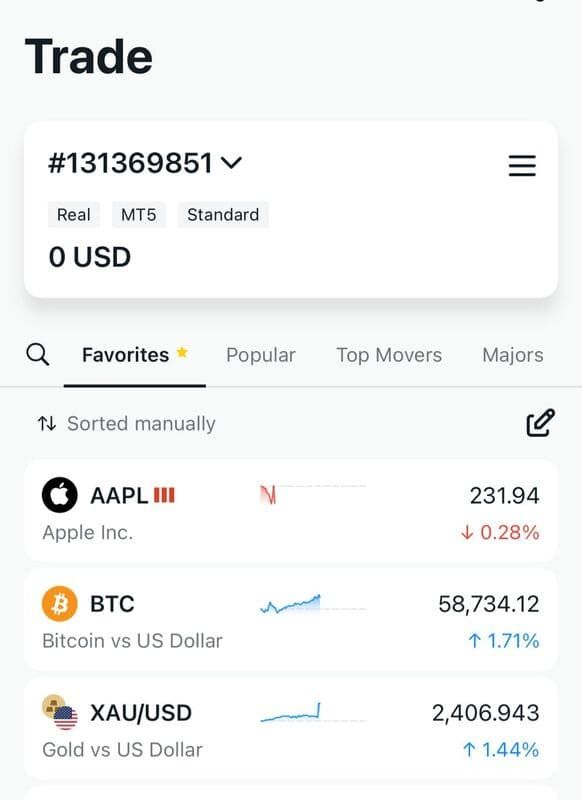
Trading on the Exness trading app is easy and seamless, and you can perform several actions inside the app. Let’s start with how to open an order.
- Launch the Exness trading app on your mobile device.
- Once inside the app, use the navigation buttons at the bottom of your screen to find the Trade page. Tap the button to open the page.
- Inside the Trade page, you’ll find various trading instruments. Tap on the instrument of your choice to expand its chart.
- Inside the new page that appears, tap the Sell or Buy button to open basic order settings, such as lot size.
- Once you’ve set these options, you can initiate the action by tapping the Confirm button. To set advanced options such as the market order, sell limit, and sell stop, click the Order Settings switch at the bottom of your screen.
- A new page will appear with three tabs for the market order, sell limit, and sell stop. Click on each tab to set your preferred parameters. Once you’re done, click the Confirm button to place the order. You will be notified of the status of your order.
Next, let’s go through how to close orders.
- Launch the Exness trading app on your mobile device.
- Once inside the app, use the navigation buttons at the bottom of your screen to find the Accounts page.
- You’ll see all your open orders on the Accounts page. Select the one you want to close and then tap the Close Order button.
- Tap the confirm button to close the order. You will be notified if this action is successful.