
5 min

0
How to Trade on Exness (Definitive Guide for 2026)
In this article, I’ll take you through a step-by-step guide on how to trade on Exness. I’ll introduce you to all the details, including how to set up your account, start trading, open and close orders, manage orders, and delete pending orders. Read through and start your journey to limitless earning with Exness.

Author

How to Start Trading on Exness

To trade on Exness, you can use a Demo account or a Real Account. During my first interactions with the platform. I found the demo account to be quite substantive in providing the necessary insight and guidance on how to trade on Exness.
Demo Account
I recommend starting with the demo account if you’ve just signed up for Exness. The demo account gives from $500 up to $10,000 virtual money that you can use to learn trading strategies without the risk of losing your investment money. This is not real money though, and you cannot withdraw it.
To trade on Exness with the demo account:
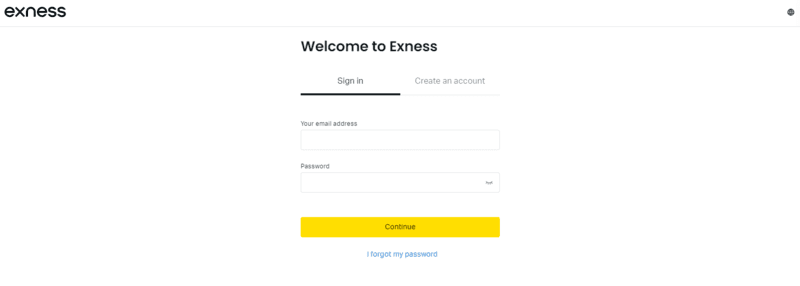
- Sign into your already created and verified account using your email and password.
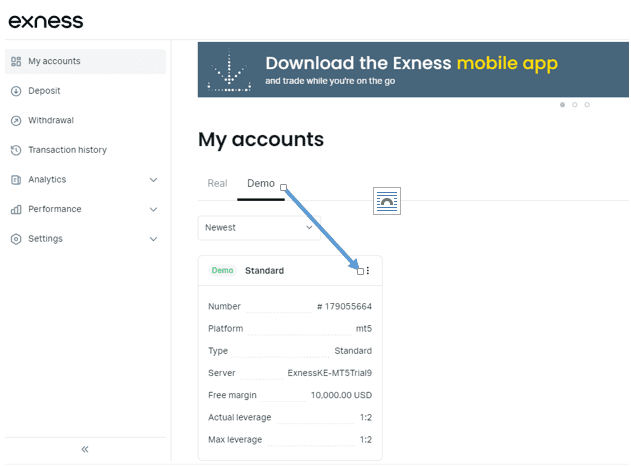
- Click on the “Accounts” icon on the left-hand side and choose the demo account.
- Once you are on the demo account, click on the three dots on the left to set up your account. Here, you will choose the type of account, the amount you want to practice with, and the leverage, among other information.
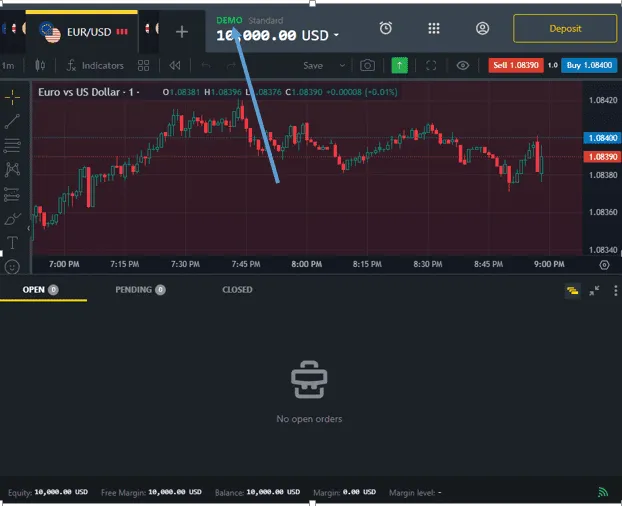
- Once set, click on “trade” to continue using the main Exness platform.
- Start practicing using our demo account.
Real Account
You can use the real account after depositing money into your account. There are four ways or steps to trade on Exness real account. I have compiled these steps in the sections below.
Opening Orders
Opening orders on Exness account includes the following steps.
-
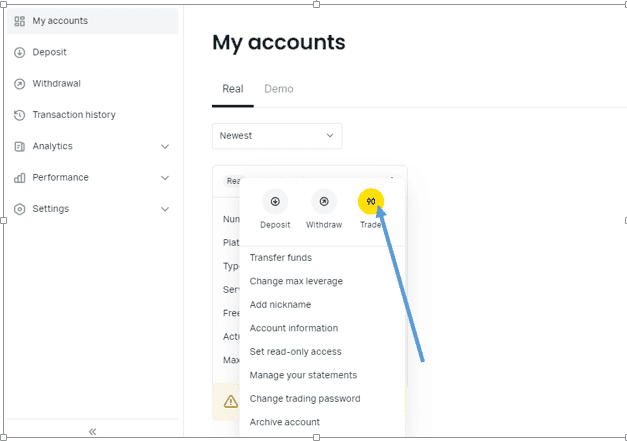
Tap on the Trade tab.
-
Tap any trading instrument to expand its chart.
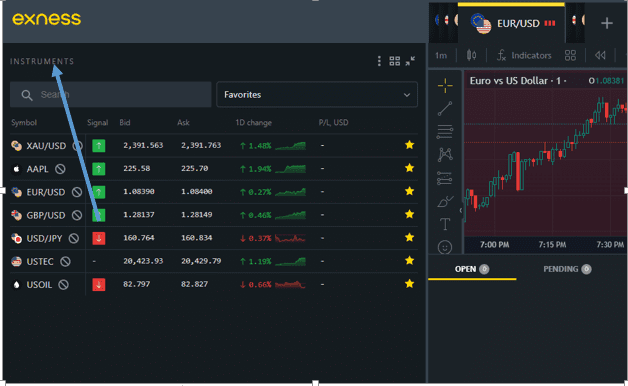
-
Tap Sell or Buy to open basic order settings, such as lot size.
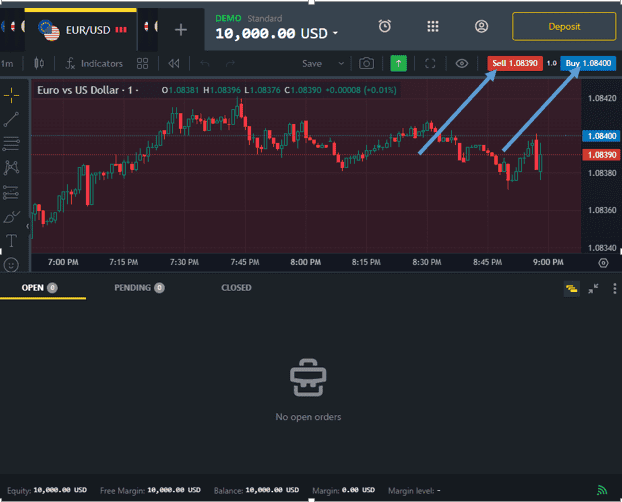
Tapping Order settings brings up advanced options including:
- The choice of 3 order types; market order, and appropriate limit and stop order types. Tap the tab to select the type.
- Take profit and stop loss options for each order type.

- Real-time data appears as these selections are chosen.
- Tap the appropriate Confirm button to open the order.
- A notification confirms that the order has been opened.
Closing Orders
I close orders when the time I need the trade to run is over. To close an order on Exness, follow the steps below.
-
Open Exness Trade.
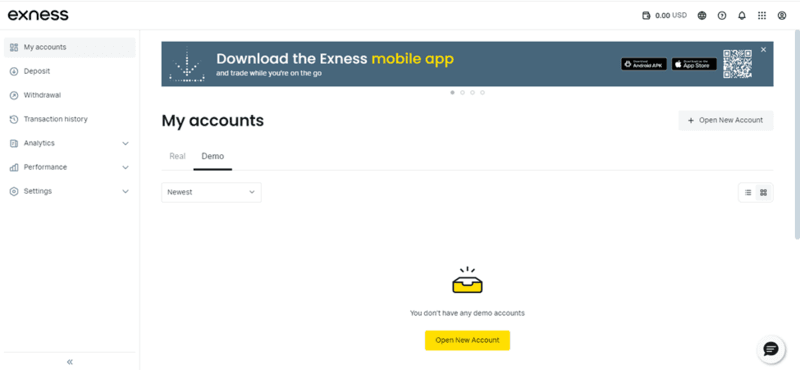
-
In the Accounts tab, open orders are shown in the Open tab.
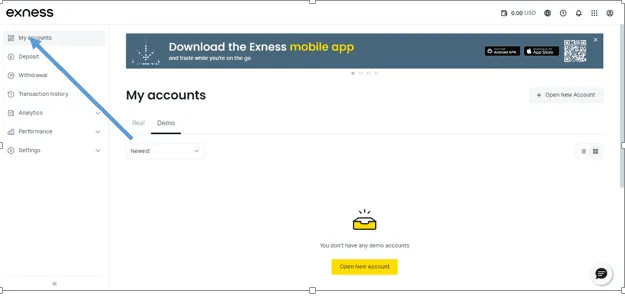
-
Tap the order you wish to close, and then tap Close order.
-
Tap Confirm to close the order.
-
A notification confirms that the order has been closed.
Managing Orders
The best feature that keeps me trading on Exness is the ability to manage your orders. I can manage all my open orders whenever I want to, whether I want to stop the order to minimize my losses or take the profit and close the trade.
The order management procedure is simple and direct. Here is how to manage orders when you trade on Exness.
-
Open Exness Trade.
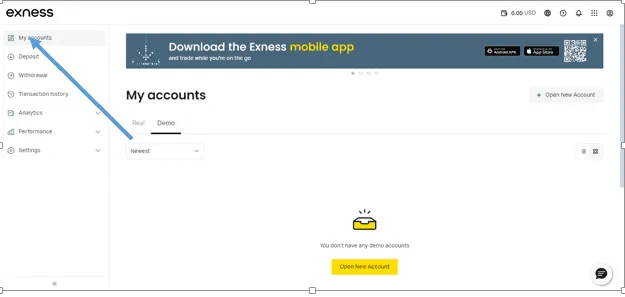
-
In the Accounts tab, open orders are shown in the Open tab.
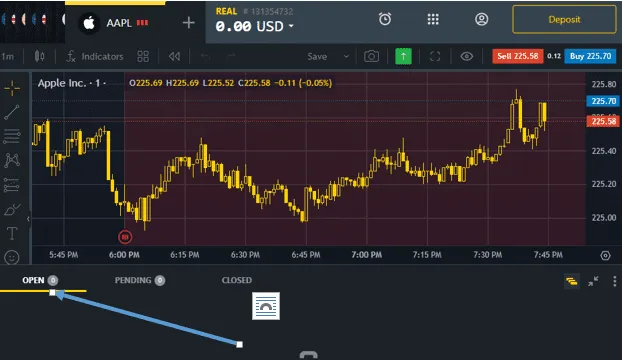
-
Tap the order you wish to change.
-
The Modify tab is open by default and here the take profit and/or stop loss settings can be set or changed.
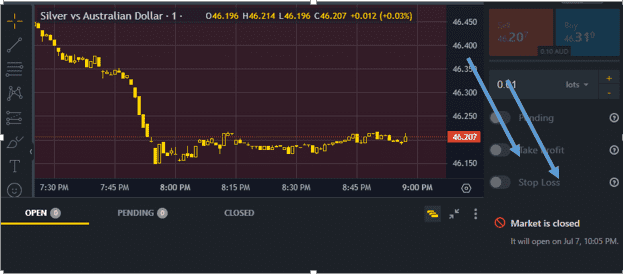
-
Tap Confirm to modify the order’s settings.
-
The order has now been changed.
Deleting Pending Orders
For someone who is not always on my computer or phone yet still needs to maximize my trade profits, I find the Exness pending order feature very useful. Think of a trading bot and how it can automate your trades without you doing the manual work – now that is how the Exness pending order feature works.
With the pending order, the feature allows me to activate certain actions automatically when certain price levels are reached. The tool can also stop the trade and close the order automatically when the prices dip below a certain level.
To delete pending orders, follow the steps below.
-
Open Exness Trade.
-
In the Accounts tab pending orders are shown in the Pending tab.
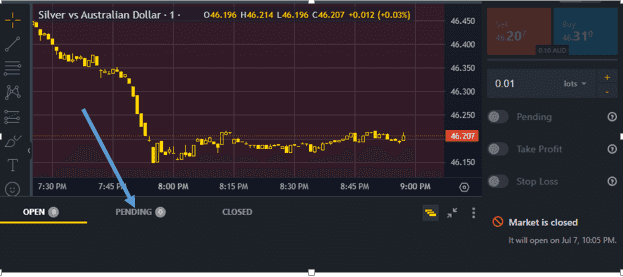
-
Tap the pending order you wish to change.
-
Tap Delete order, then Confirm.
-
The pending order has now been deleted.
Withdraw Money
The withdrawal process on Exness is easy. The best part is that I’ve had the discretion to choose the withdrawal method to use. You can withdraw on Exness by following the steps below.
- Tap Withdrawal on the Accounts tab on your main screen.
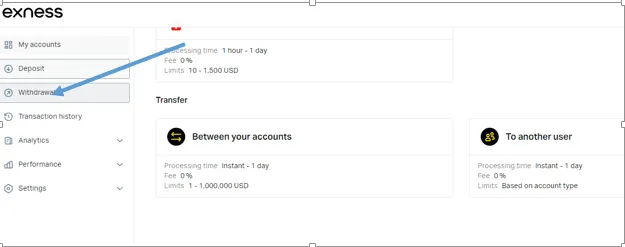
- Select a payment method from the listed options. Do note that available payment methods may vary based on your Personal Area’s registered country.
- Fill out the necessary details and tap Continue. The information required may differ depending on the payment method selected.
- Enter the verification code sent to your security type and tap Submit.
- On the confirmation page, check the details and click Confirm. You will then be redirected to the payment method’s site to complete the transaction.
- Once completed, you will be able to see the details and status of the transaction.
What You Can Trade on Exness
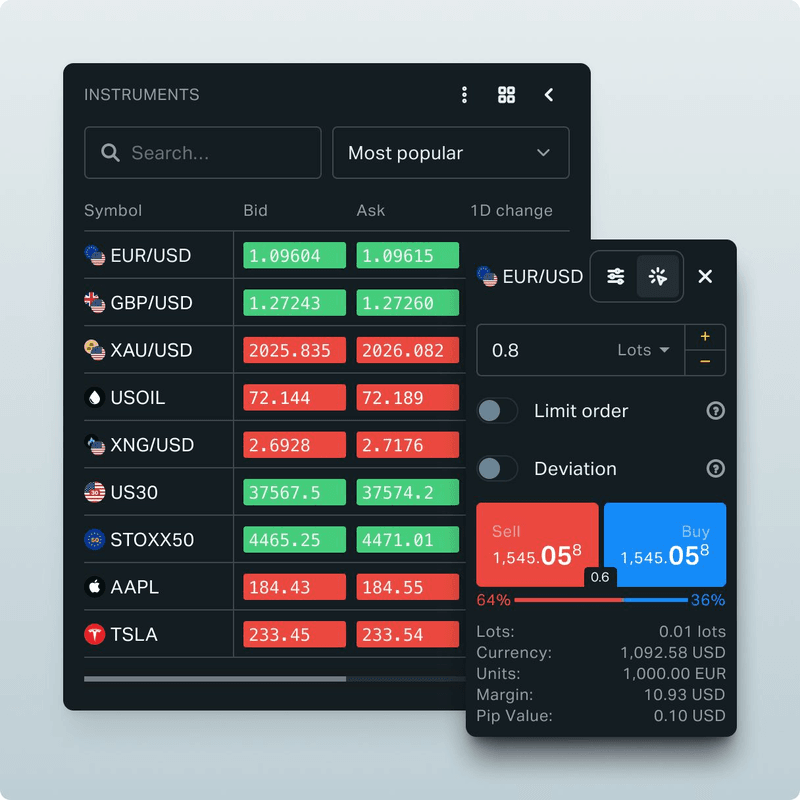
There are numerous assets and instruments you can trade on Exness. Here are some of the assets I trade on the platform which are decent investments that can give you good profit on Exness.
- Currencies (forex): Exness has several currency pairs, mostly focusing on the USD and other dominant global currencies.
- Stocks: Exness allows you to speculate on stock price movements of popular companies like Apple and Google.
- Indices: Besides individual stocks, you can also speculate on whole market movements in the indices market on the Exness platform.
- Commodities: Exness allows you to speculate the price movements of tradable commodities like metal, oil, and gold.
Final Word
I’d trade on Exness any day. The platform has some of the best trading features in the industry, making it easy to maximize your profits. While I find it easy to use, the many number of assets and instruments to trade on makes Exness even more preferable.
Now that I have given you a step-by-step guide on how to trade on Exness, you have no excuse for why you can’t sign up and make money on the platform.
Find Your Perfect Broker: Explore Our List Now!
Choose the best with our expert-selected options
Find Your Perfect Broker: Explore Our List Now!
Choose the best with our expert-selected options
Discover top binary options brokers tailored to your region. Browse our curated lists by country: